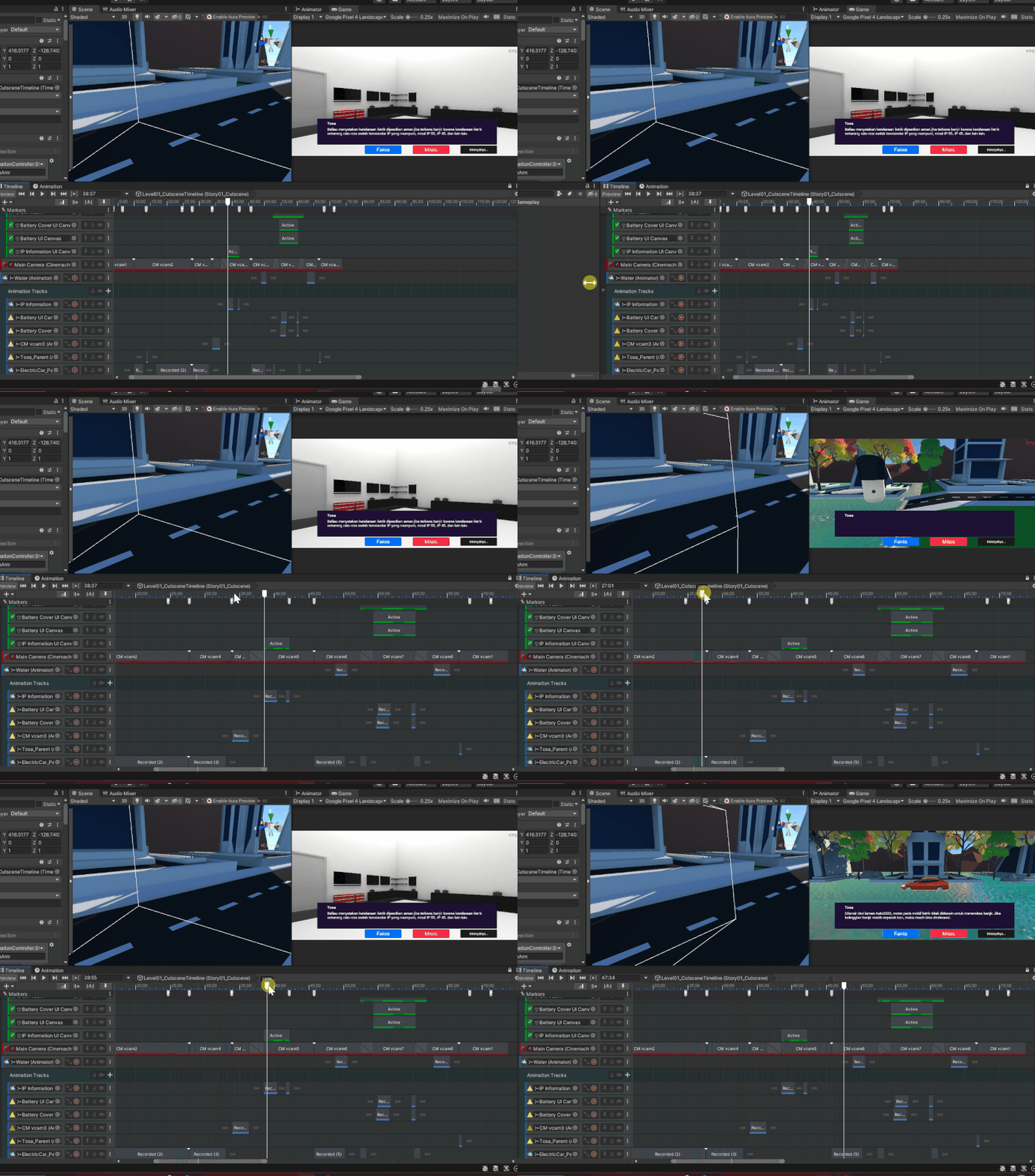
The Unity Timeline of the game
Project Mobile Game Mitos atau Fakta Mobil Listrik
Please keep in mind that these explanations is simply me sharing what I did to get the result. I believe there's room for improvement in the code and system, but currently, I don't have the skills and time to make those optimizations.
The Unity Timeline of the game
The Unity Timeline acts as a place that can contain different tracks, where each track can contain different clips (Just like Premiere Pro or any other timelines). As a developer, I wanted to optimize the game and make it more efficient, so I developed a tool for the dialogue system within the Unity Timeline.
The tool makes it a lot easier to manage, as it can provide more visibility and controls of the dialogue in the Timeline instead of dealing with a bunch of buttons and manually set the duration for each dialogue panel in the Inspector tab. I also considered our 3D artist on the team and made sure the tool is user-friendly for them.
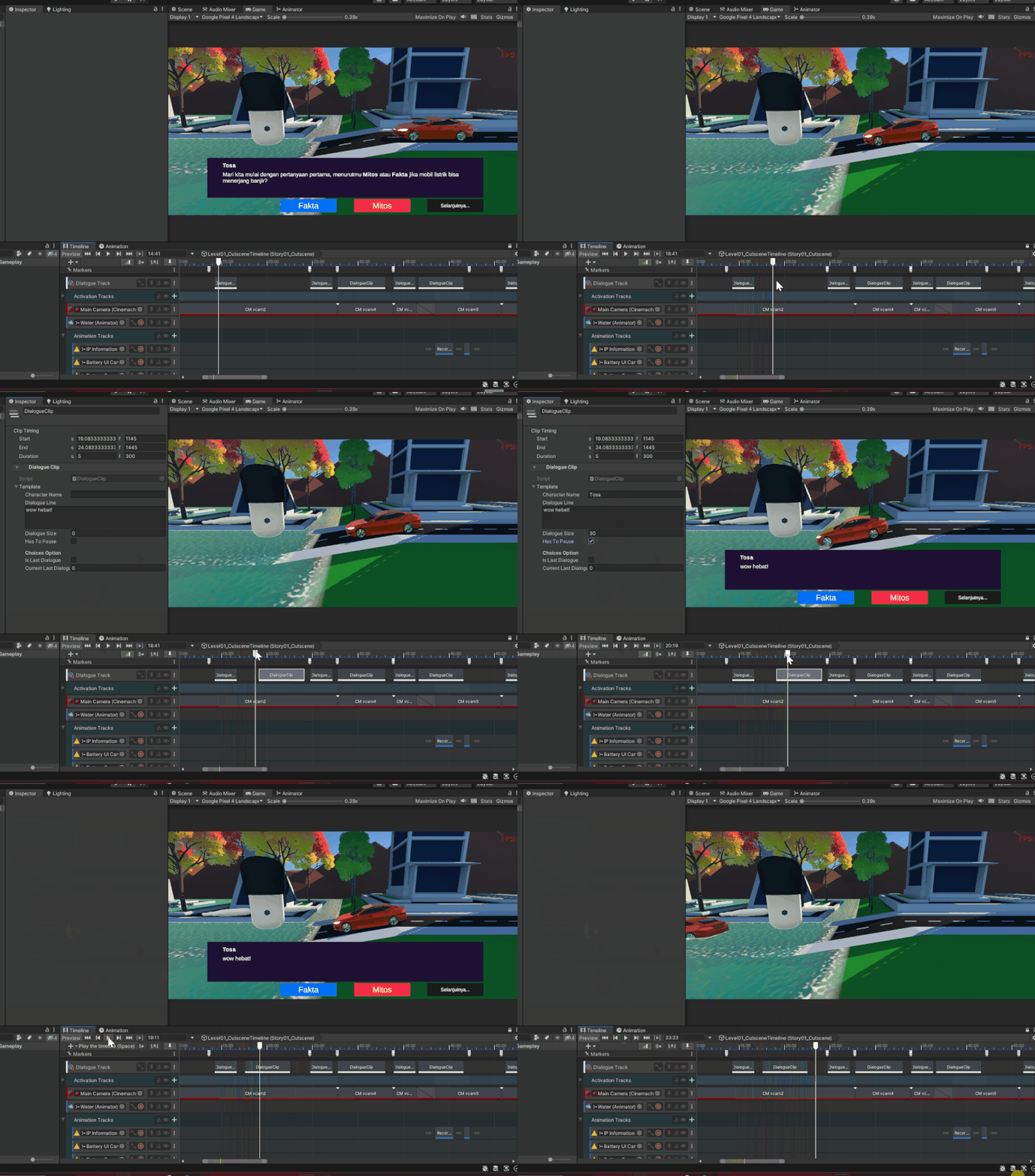
Demo of the dialogue system tool
To create the dialogue system tool within Unity Timeline, I found a solution by editing the Timeline script. I began by researching how to achieve this functionality and came across a similar template in the Unity Timeline demo project.
After downloading the project to study it, I imported the script into my project and proceeded to make modifications by adding "Fakta" and "Mitos" buttons, as well as a finished button to achieve the result I want for the dialogue clip.
You can find the Unity Timeline project demo in the Unity's blog by visiting this link https://blog.unity.com/technology/creative-scripting-for-timeline.
Now, let's dive deeper into the technical side. In total, there are 7 scripts, including the Singleton script, that contribute to achieving this result. But There are three important scripts that are essential for our Dialogue System within Unity Timeline, they are DialogueTrack (for the Track Asset), DialogueClip (for the Playable Asset), and DialogueBehaviour (for the Playable Behaviour). These scripts are crucial for managing and controlling the timeline-based interactions in our project.
Each of those 3 scripts has a specific role that works together in the following way:
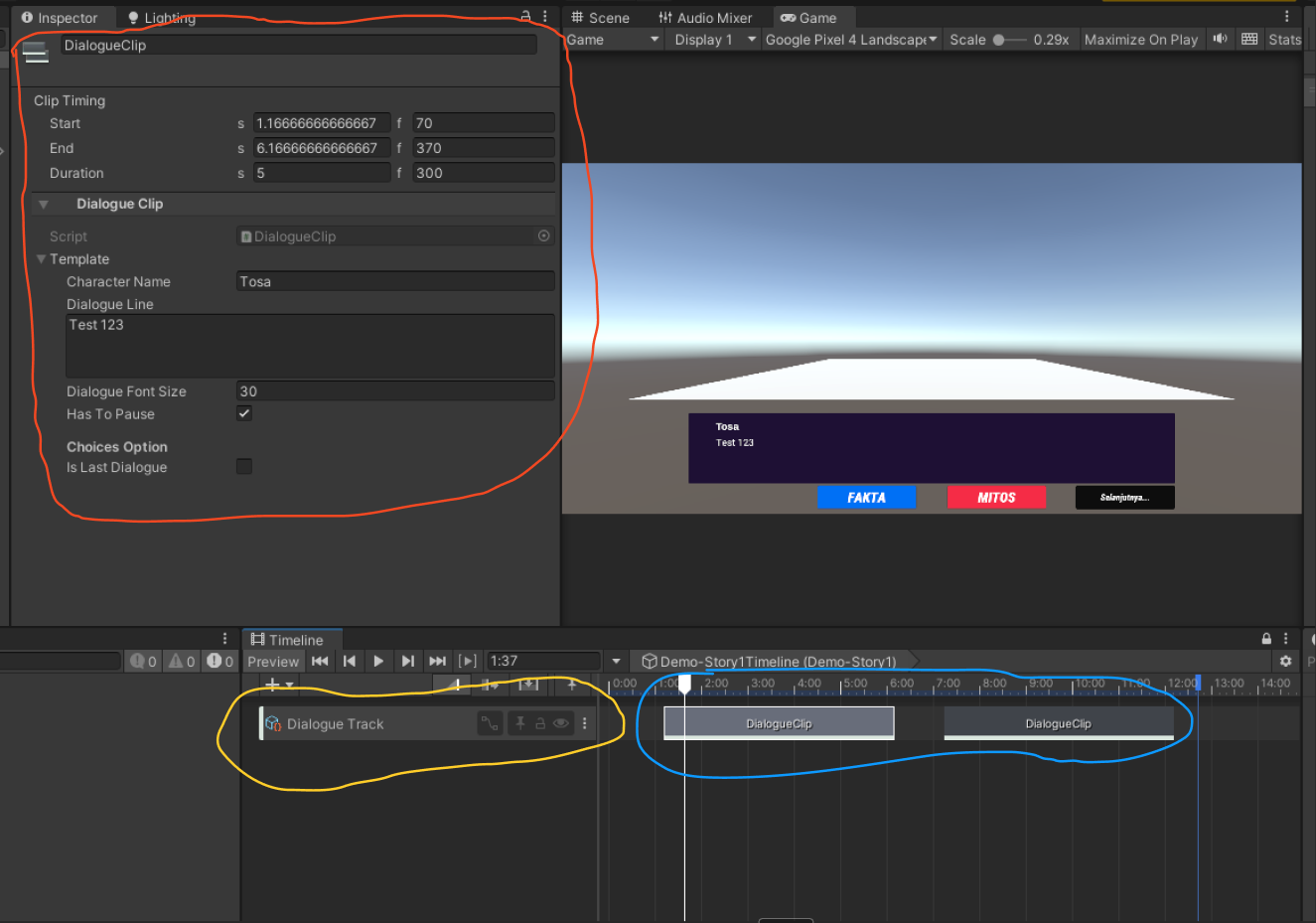
The anatomy of each 3 scripts
And now, for the exciting part, let’s see how this dialogue system works by creating it from scratch.
Creating the UI for the Dialogue
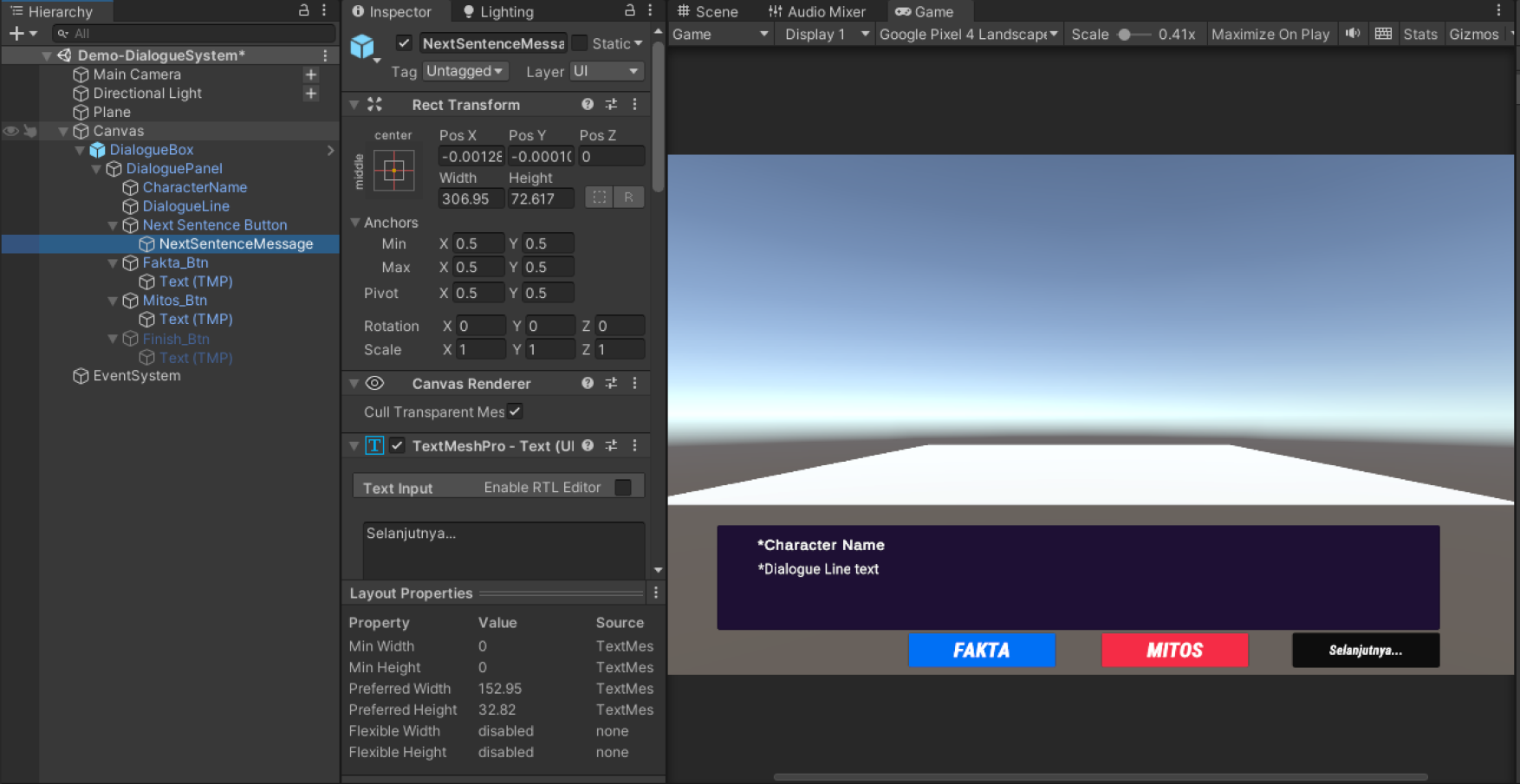
Creating the UI of the Dialogue
Creating the Timeline
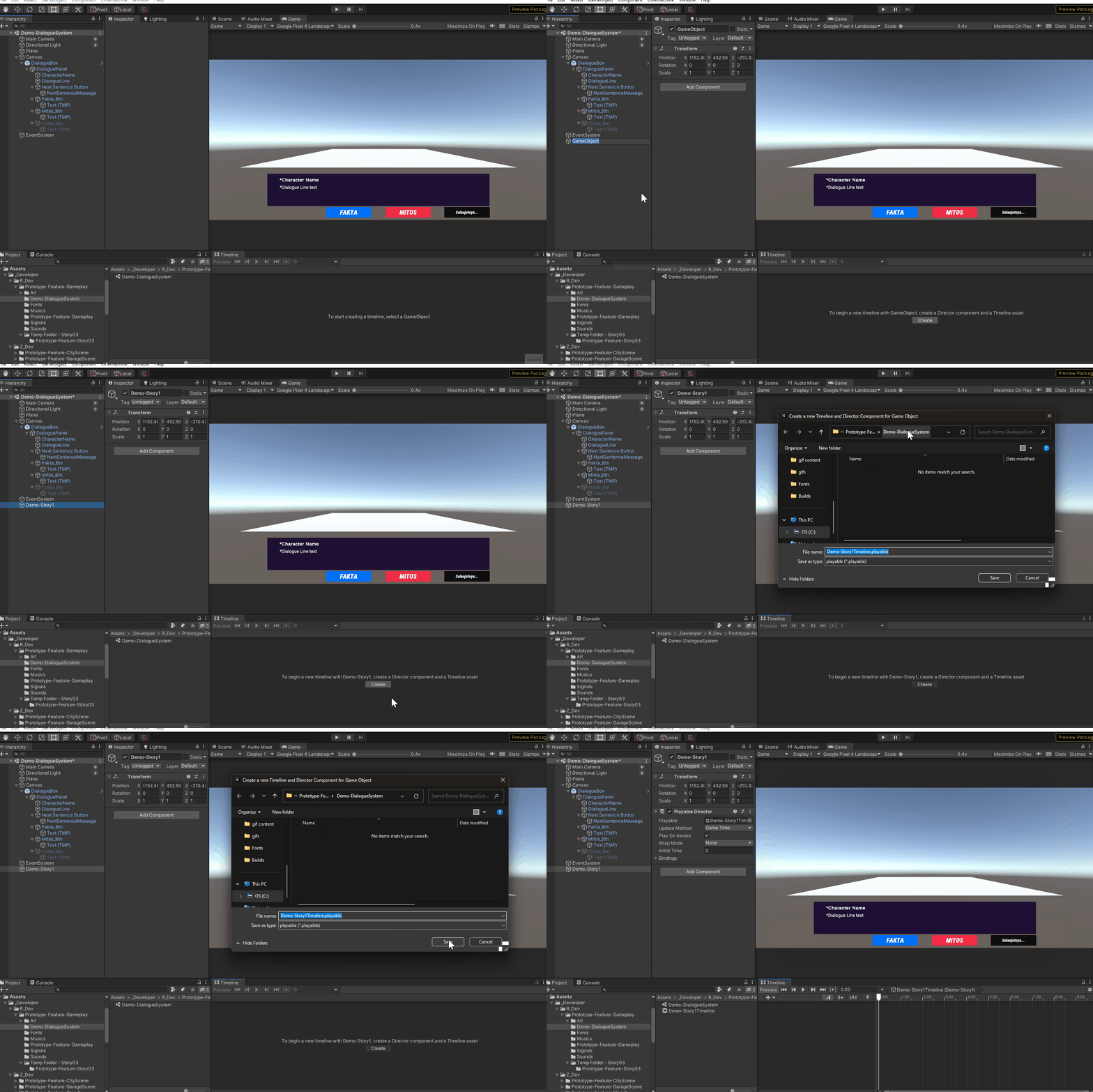
Creating the Timeline
Then we create a new Empty GameObject to act as our Timeline.
Creating the Dialogue Track
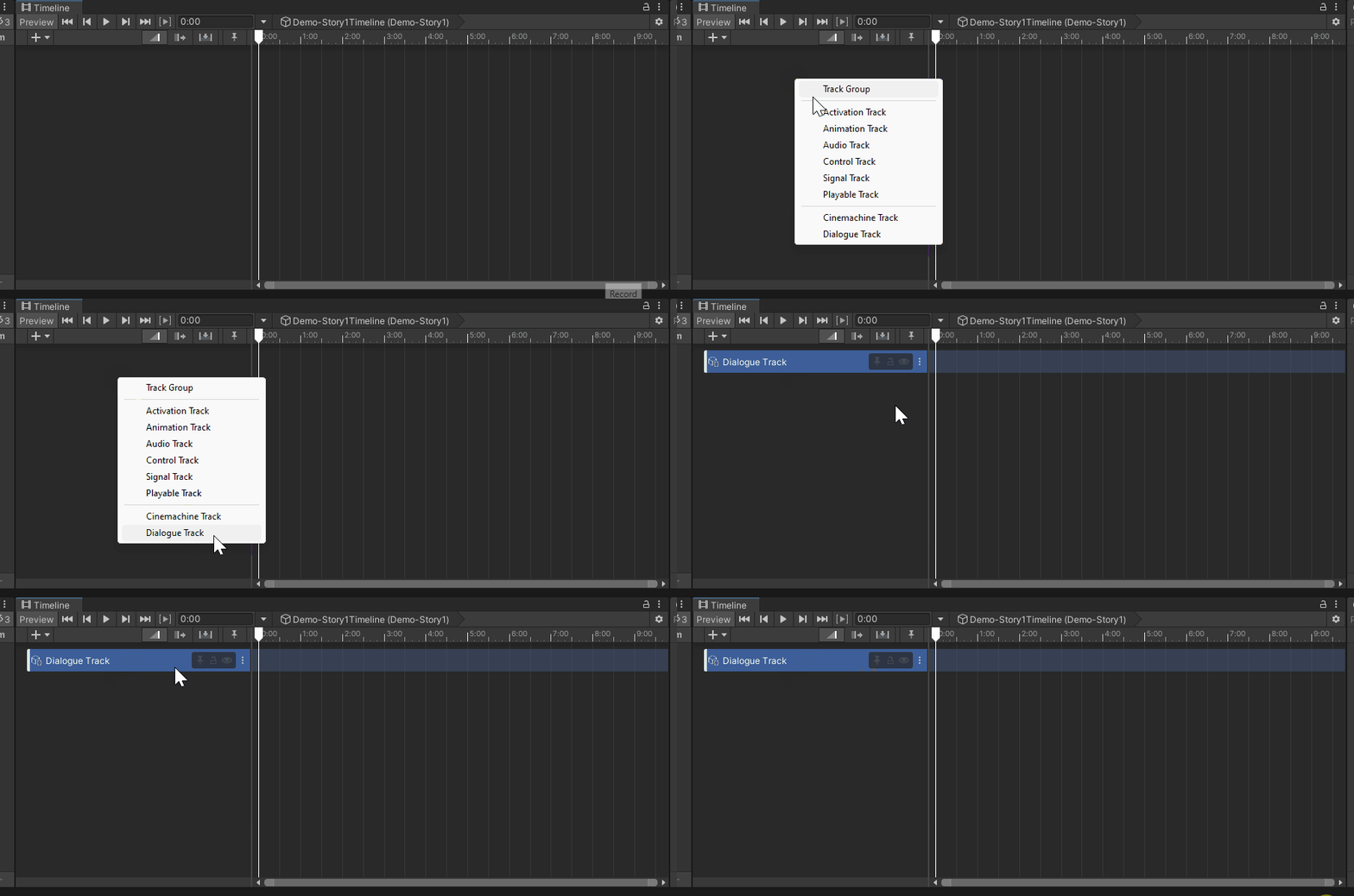
Creating the Dialogue Track
To add a Dialogue Track, simply right-click on the left side of the Timeline. You'll notice a custom Dialogue Track with the same name as the DialogueTrack class.
This is how it works:
The Dialogue Track serves as a container for multiple clips in Unity Timeline. To create a custom track asset, we'll need to create DialogueTrack class like this script below.
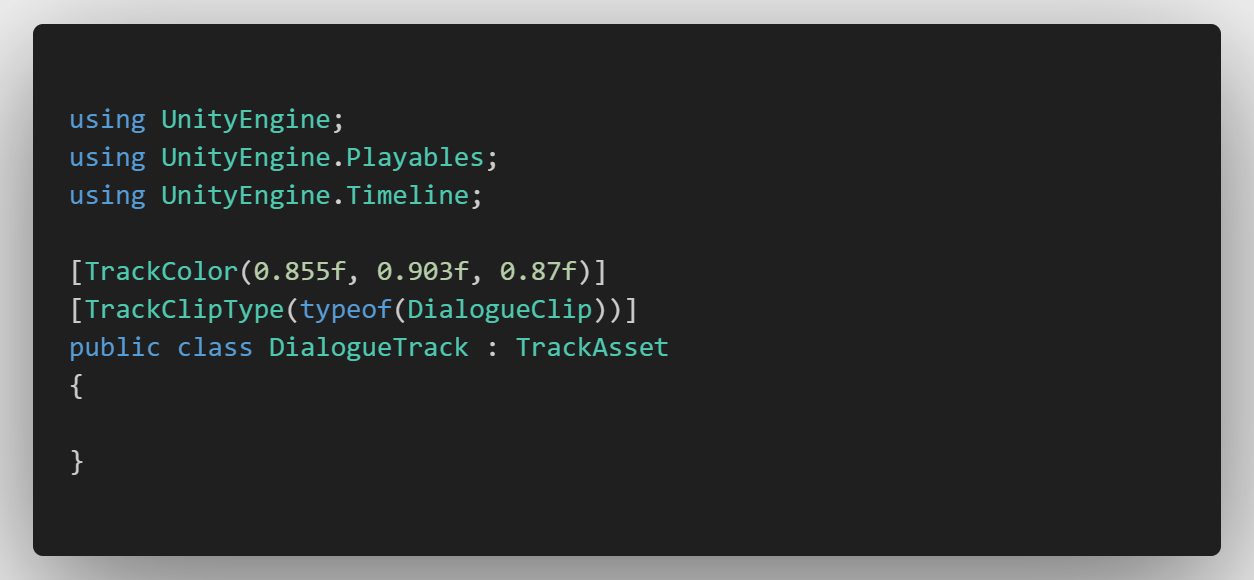
The code of DialogueTrack script
using UnityEngine;
using UnityEngine.Playables;
using UnityEngine.Timeline;

[TrackColor(0.855f, 0.903f, 0.87f)]
[TrackClipType(typeof(DialogueClip))]
public class DialogueTrack : TrackAsset
{

}
The code of DialogueTrack script
Now, we have a custom Dialogue Track. In the script, we can see the TrackColor and TrackClipType attributes. This means that the Dialogue Track has a white color and uses the DialogueClip class for its clips. The DialogueTrack class is derived from the TrackAsset class, which is the base class used in Unity's Timeline.
Creating the Dialogue Clip
After successfully creating the Dialogue Track, the next step is to make the Dialogue Clip that can be played on that track.
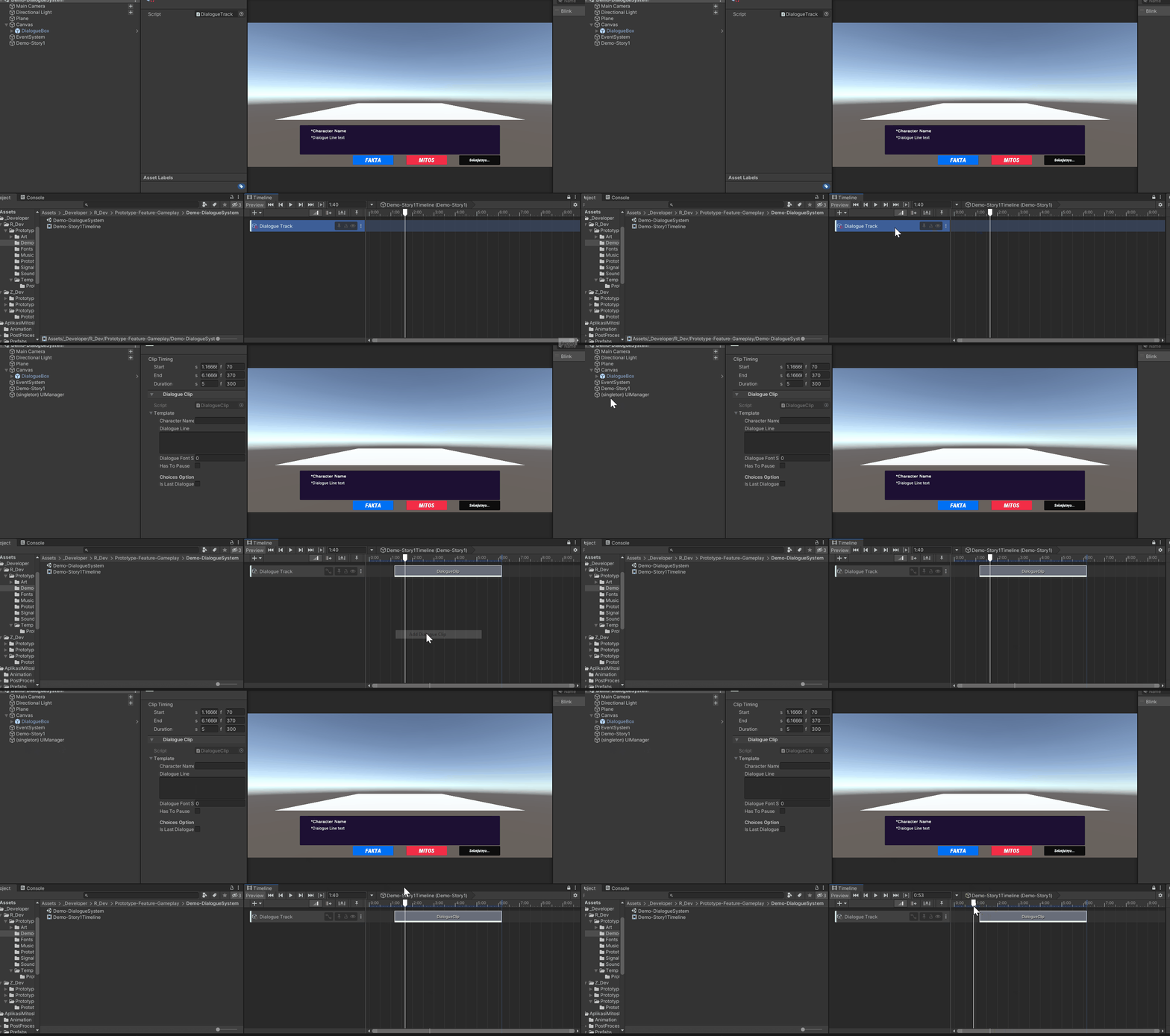
Creating the Dialogue Clip
To create the Dialogue Clip, right-click in the empty space on the right side of the Timeline. Then, click on 'Add Dialogue Clip' in the highlighted area. The Dialogue Clip will be named after the DialogueClip class.
You may notice that when we create our first Dialogue Clip, a UIManager GameObject appears in the Hierarchy window. This GameObject represents a Singleton instance of UIManager. Now, let's take a closer look at how it works.
This is how it works:
First, before we jump into analyzing the code, let's understand the basic concept of Unity Timeline Playables. Playables are the most important part when creating assets for Timeline. So, what exactly is a Playable?
Unity Timeline Playables are specialized assets within the Unity engine that enable the creation and control of dynamic elements, such as animations, audio, or custom gameplay logic, within a Timeline. They make it easy to organize and coordinate events during playback, making Unity projects more interactive and engaging.
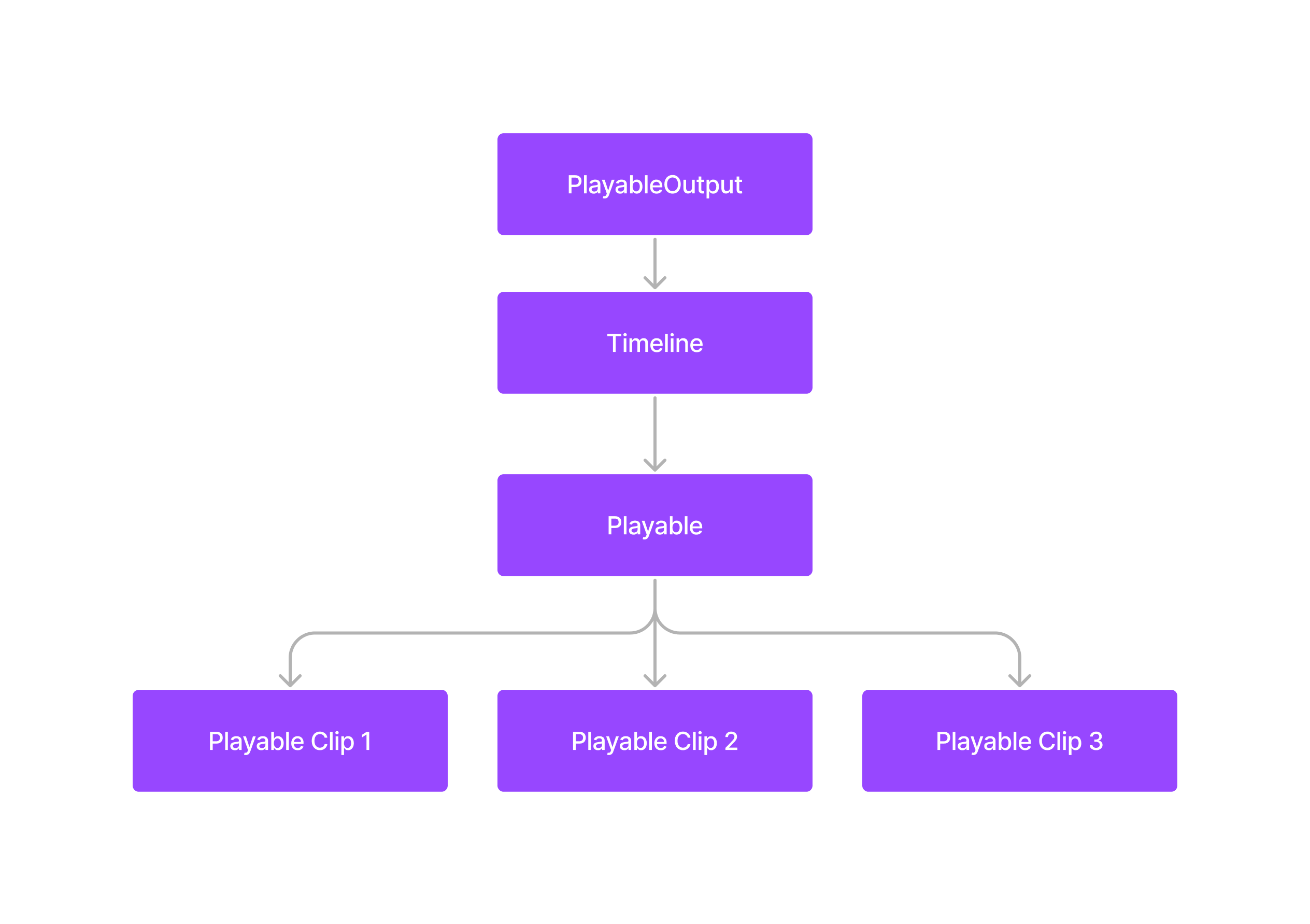
The Timeline Playable Graph structure
As you can see in the Playable Graph, Playables refer to everything that can be played in Unity Timeline. If you want to see the types of Playables, these are the most common types of Playables and Playable Outputs.
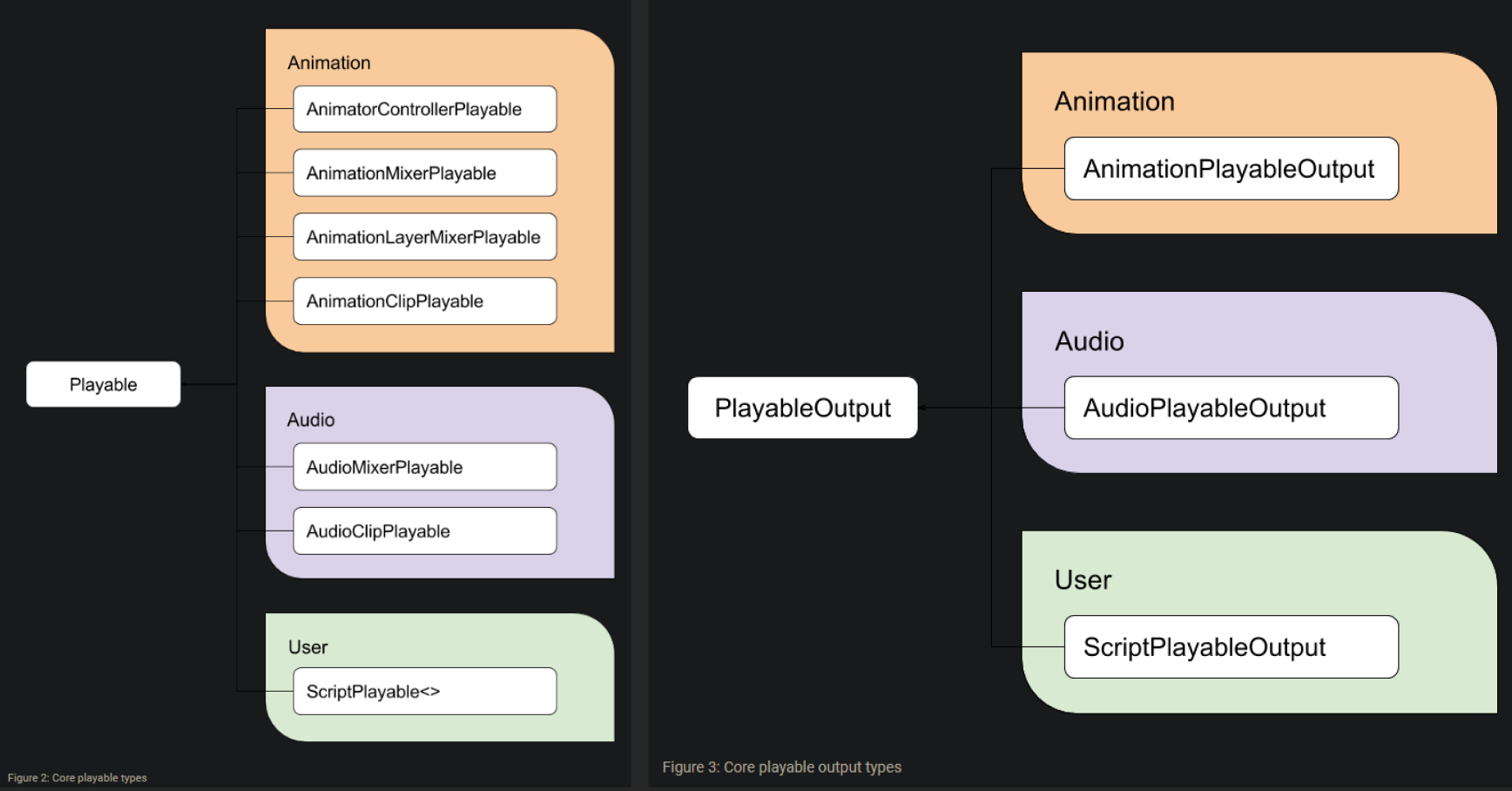
Common types of Playables and Playables Output
Now let's take a look at the Playable Graph for our Timeline using the PlayableGraph Visualizer package. It provides a visual representation of how different Playables are connected and controlled, but we need to install it first.
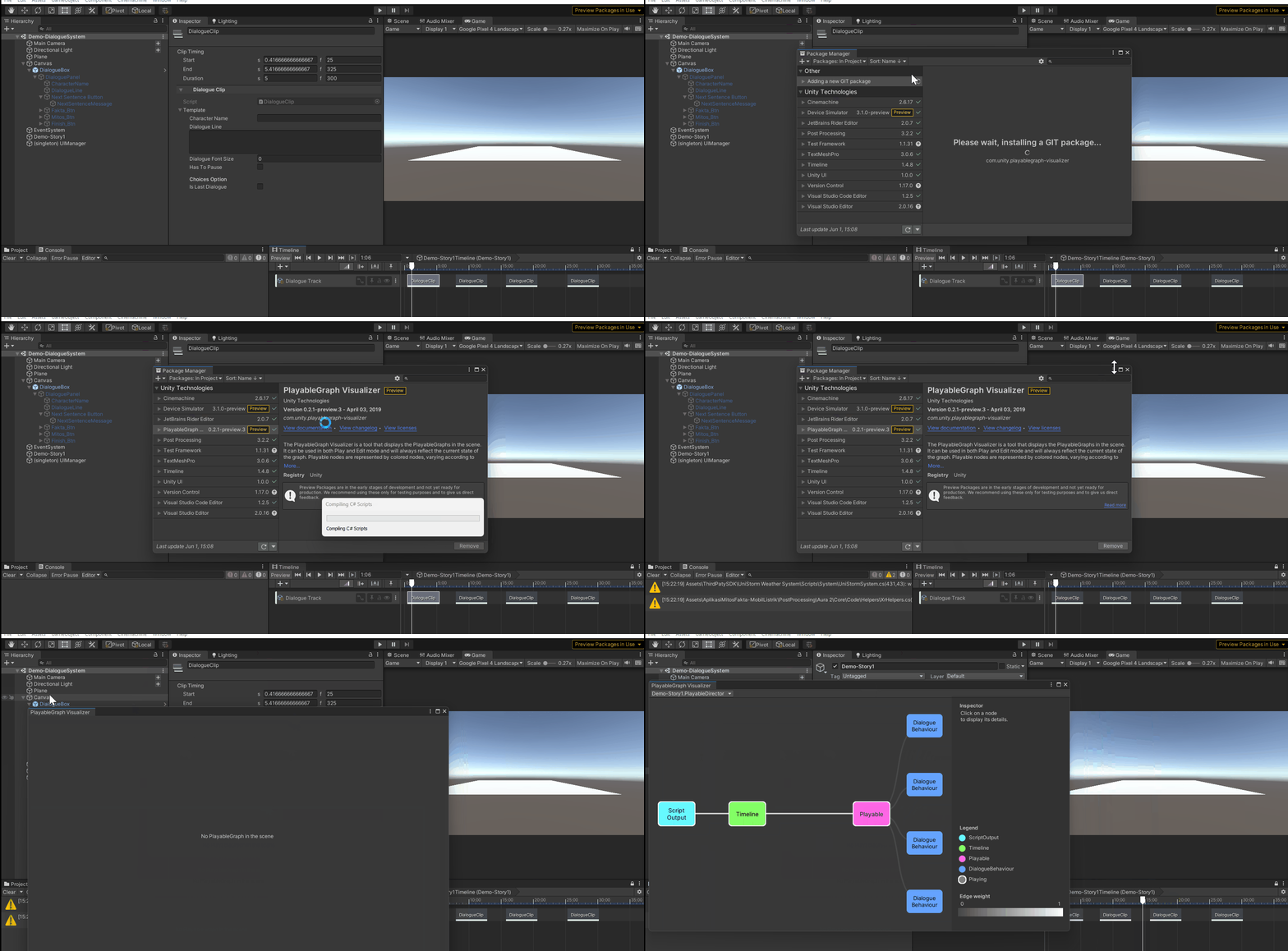
PlayableGraph Visualizer package installation
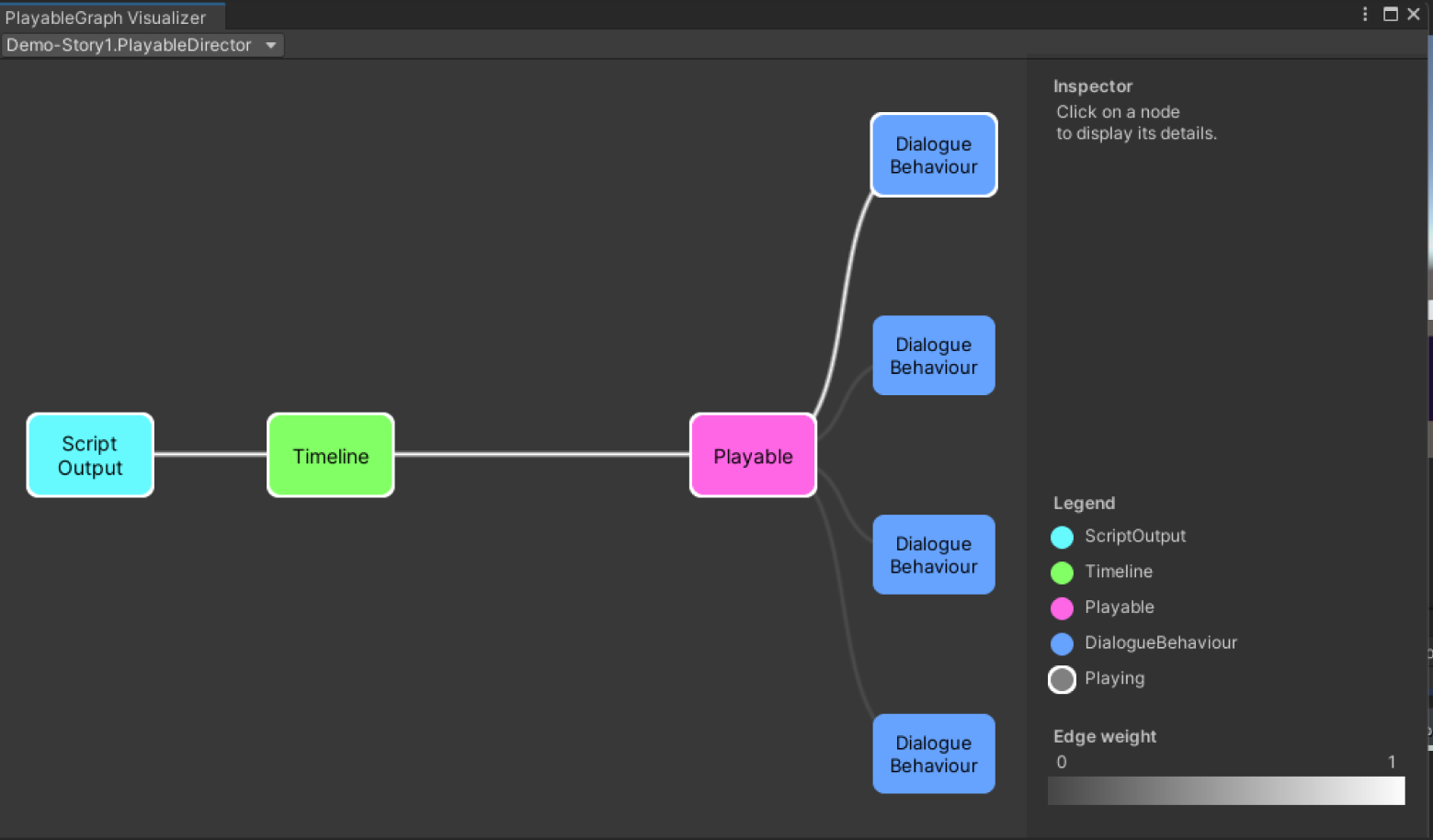
PlayableGraph Visualizer window
Based on that PlayableGraph, we can see that the PlayableGraph is from Demo-Story1.PlayableDirector, the PlayableOutput is a ScriptOutput, and the Playable is a customized ScriptPlayable<> called DialogueBehaviour.
Next, let's take a look at how the PlayableGraph works in our Timeline.
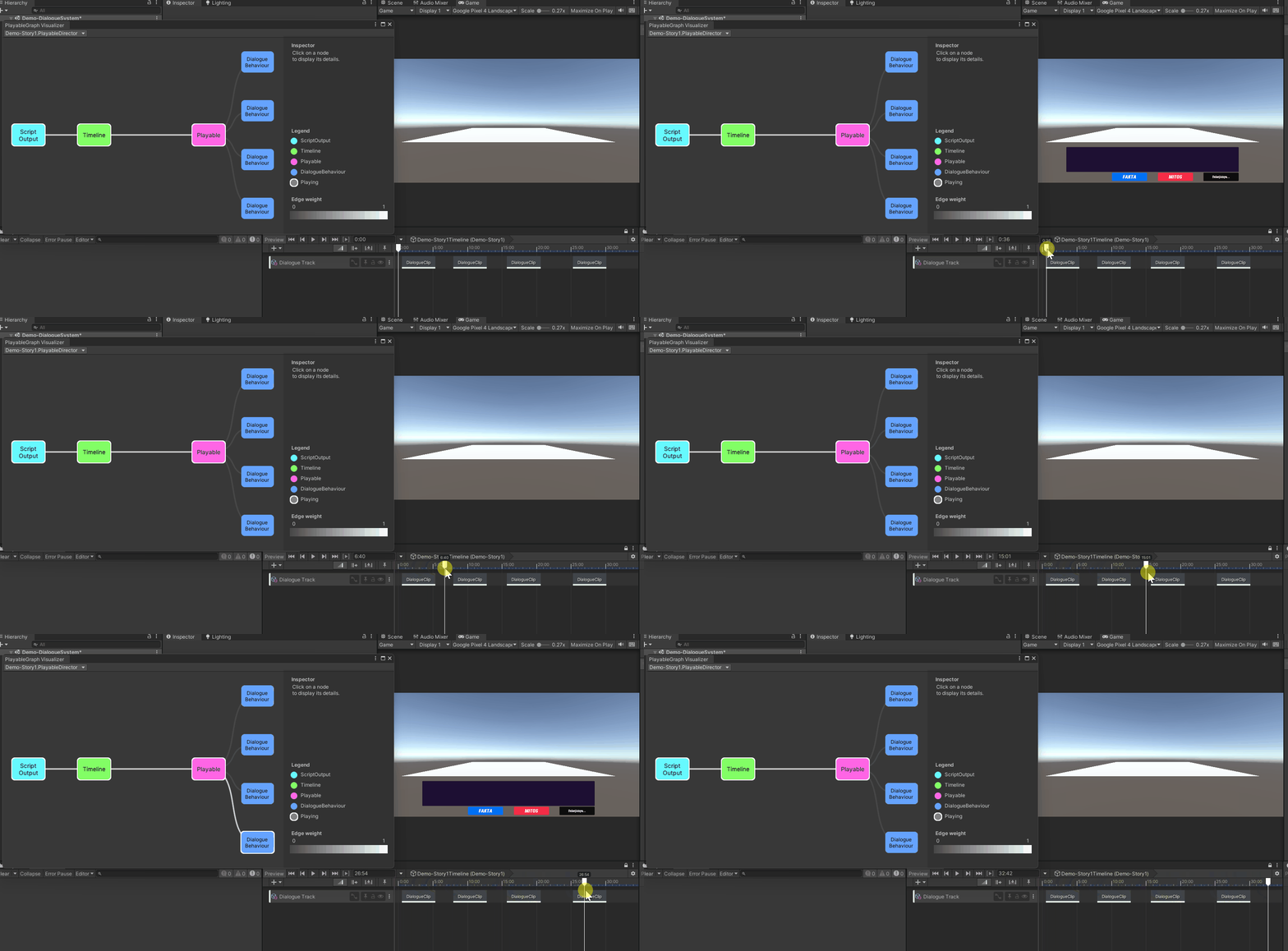
Demonstration of the Playable Graph
When we play the DialogueClip, we can see that the DialogueBehaviour on the PlayableGraph is highlighted. Also, the Edge Weight on the graph line turns white (1), showing that the Playable is currently active.
If we observe more on the Edge Weight, it can be useful for blending between clips, for example like this.
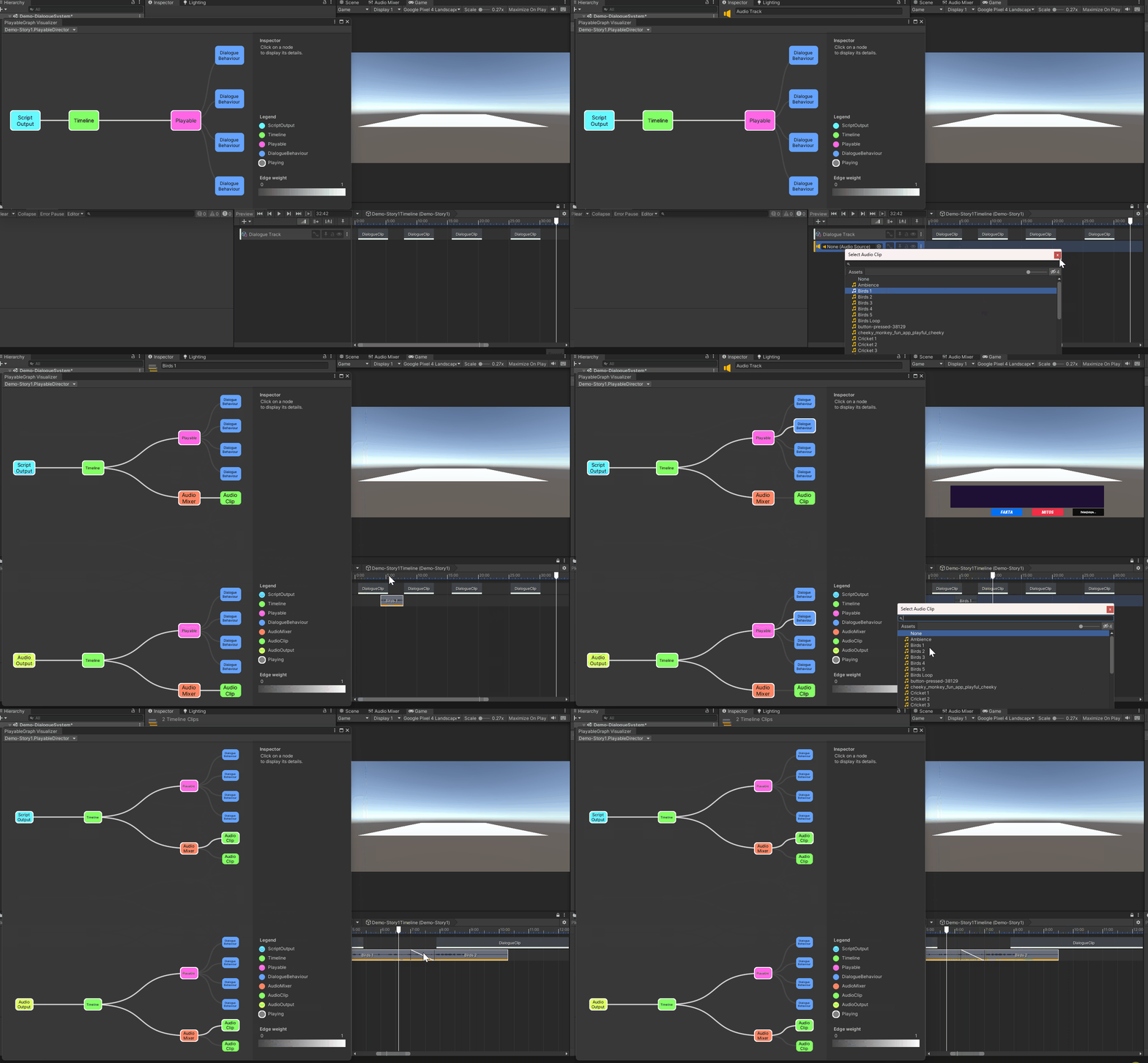
Demonstration of the Edge Weight in Playable Graph
If you're wondering why the DialogueBehaviour Playable doesn't have a mixer, it's because we didn't implement any mixer in the script.
Now that we understand the basics of the Playable, let's dive into the code and see how the DialogueClip works.
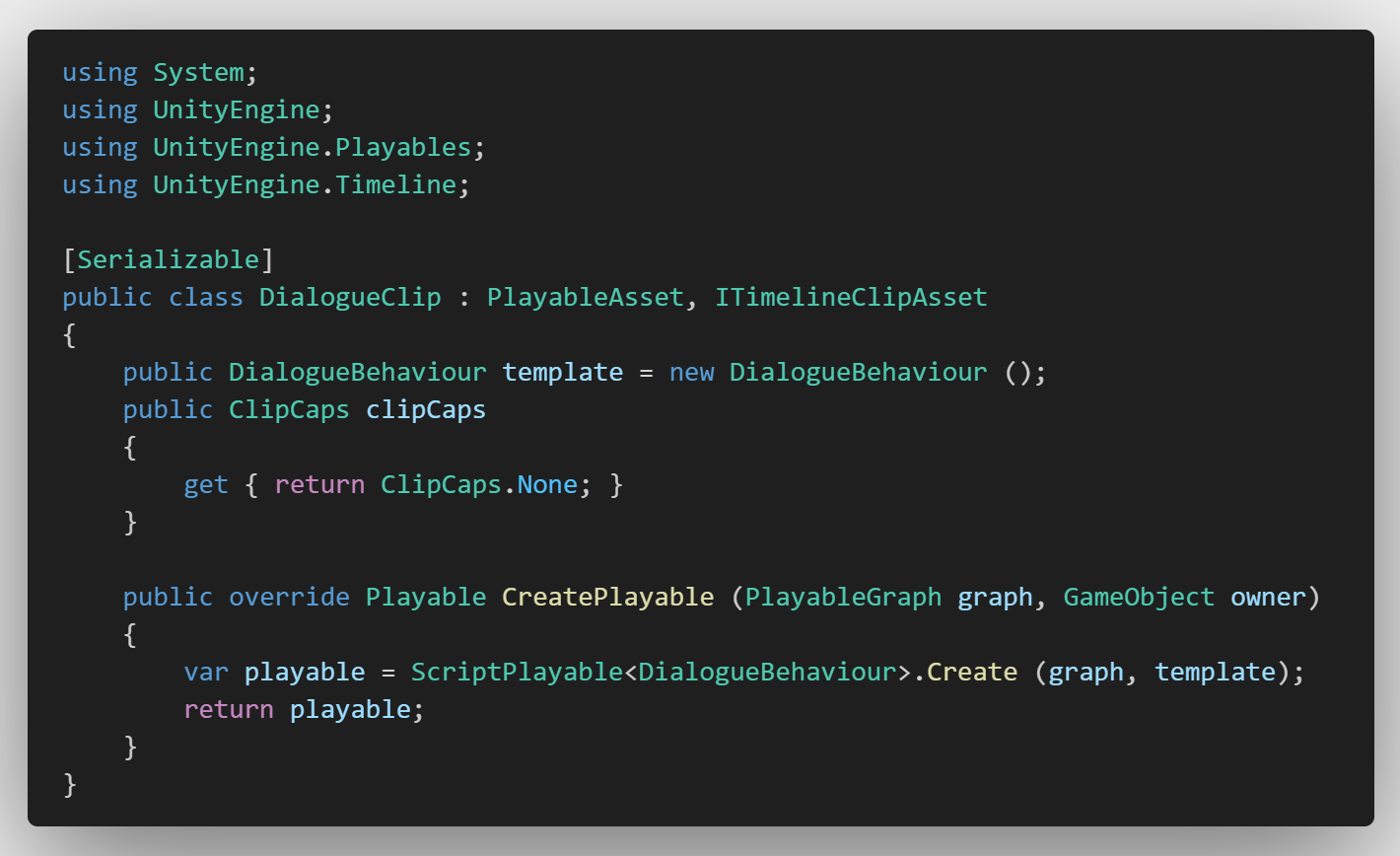
The code of DialogueClip script
For this script, we are going to use UnityEngine.Playables and UnityEngine.Timeline libraries to create our own custom clip. To make sure the DialogueClip class can be saved and serialized, we added the Serializable attribute to it.
Code snippet to access the required namespaces and Serializableusing System;
using UnityEngine;
using UnityEngine.Playables;
using UnityEngine.Timeline;
[Serializable]
Then, in the DialogueClip class, we use the PlayableAsset class and implement the ITimelineClipAsset interface class.
Code snippet of DialogueClip class declarationpublic class DialogueClip : PlayableAsset, ITimelineClipAsset
The PlayableAsset is a base class used to create new Playable assets. We use it to override the CreatePlayable() method later on.
The ITimelineClipAsset is an interface class that helps us add advanced features to Timeline Clips. In this case, we use it to implement the ClipCaps feature for our clip.
Now, we create an instance of the DialogueBehaviour class called template and set it as public. This allows us to create a behavior template for our clip, specifically the DialogueBehaviour class.
Code snippet to create an instance of the DialogueBehaviourpublic DialogueBehaviour template = new DialogueBehaviour ();
Next, this code is used to handle the Clip Capabilities (ClipCaps) for our clip. Since we don't want any advanced features in the ClipCaps, we set it to none.
Code snippet to handle the Clip Capabilities for dialogue clip.public ClipCaps clipCaps
{
get { return ClipCaps.None; }
}
Lastly, we need to implement the behavior (logic) of the clip using our DialogueBehaviour class by overriding the CreatePlayable() method.
Code snippet of method to implement the DialogueBehaviour public override Playable CreatePlayable (PlayableGraph graph, GameObject owner)
{
var playable = ScriptPlayable<DialogueBehaviour>.Create (graph, template);
return playable;
}
The CreatePlayable() method is part of the Playable struct and is used to create a new clip. This method takes PlayableGraph and GameObject parameters, which are used to define the PlayableGraph of the current Timeline and the owner GameObject of the PlayableGraph. In our case, the owner GameObject is referred to as Demo-Story1.
After creating our clip, the next step is to implement the desired logic using the DialogueBehaviour class. This allows us to define how the clip will behave and what actions it will perform.
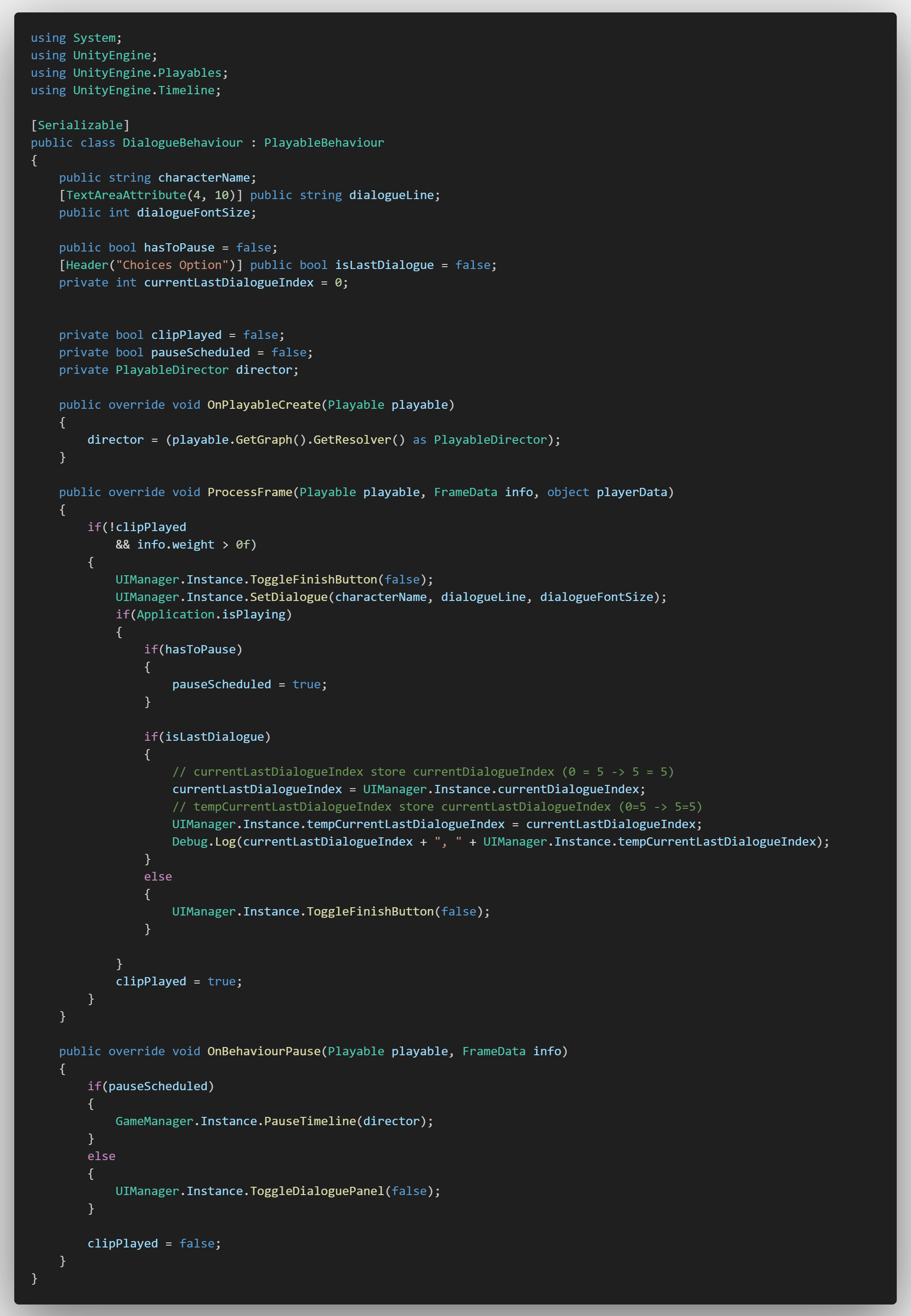
The code of DialogueBehaviour script